
How to Fix SEO Issues: A Step-by-Step Guide for 2026
 By Eddie Casas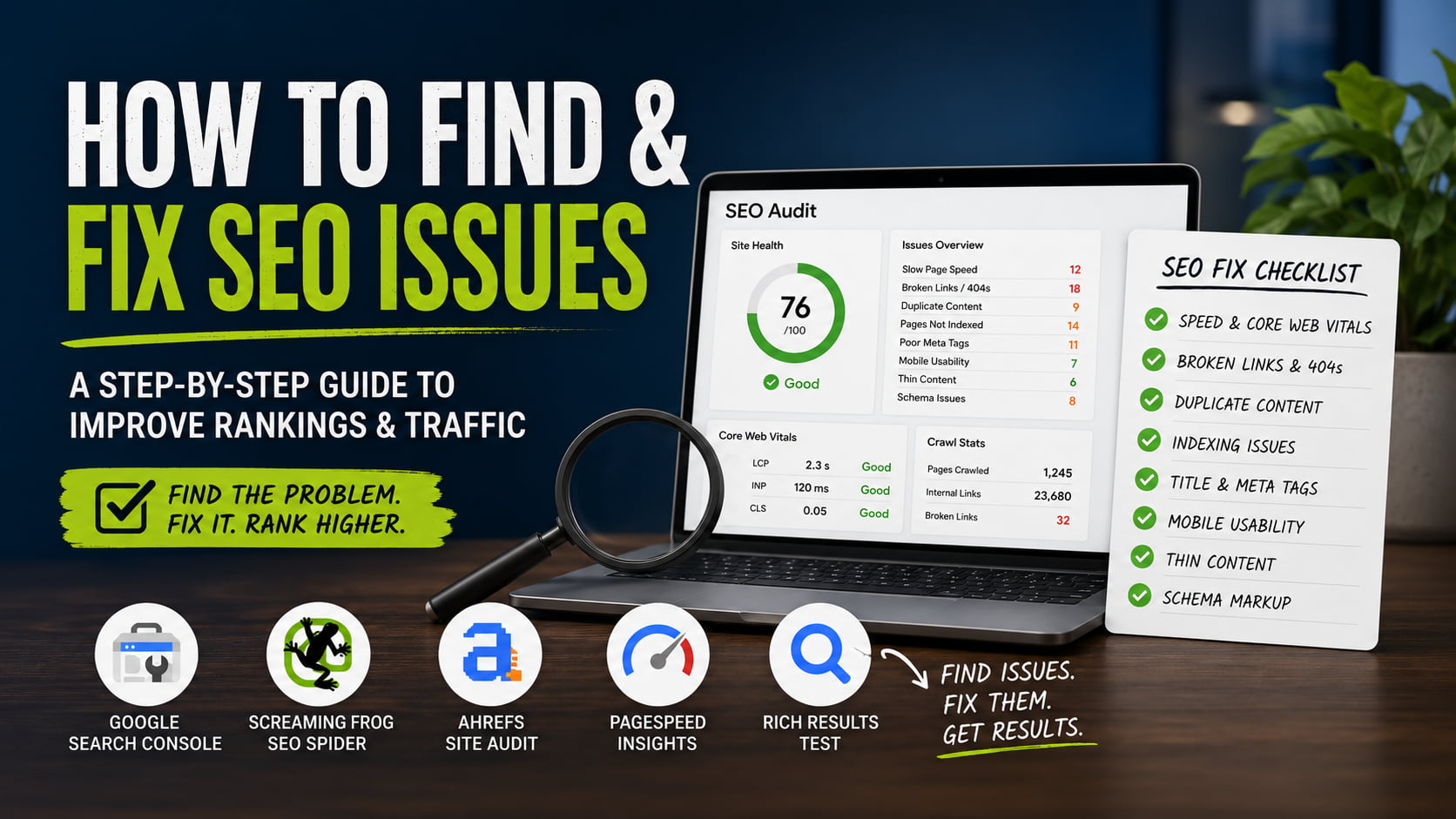
If your rankings stalled or your traffic slipped, the cause is rarely a mystery. Most SEO problems fall into a handful of buckets, and nearly all of them are fixable without an agency. This guide shows you how to fix SEO issues by symptom: find each one, understand why it hurts, and follow the steps to clear it. The starting point is a free crawl in Google Search Console, Ahrefs, or Screaming Frog.
In this guide:
- How to Find SEO Issues Before You Fix Them
- How to Fix Slow Page Speed and Poor Core Web Vitals
- How to Fix Broken Links and 404 Errors
- How to Fix Duplicate Content
- How to Fix Pages That Aren’t Getting Indexed
- How to Fix Missing or Weak Title Tags and Meta Descriptions
- How to Fix Mobile Usability Problems
- How to Fix Thin or Low-Value Content
- How to Fix Missing or Broken Schema Markup
- How to Prevent SEO Issues From Coming Back
- Fix Your Schema Issues in Minutes with Schemafy
- Frequently Asked Questions
How to Find SEO Issues Before You Fix Them
You can’t fix what you can’t see. Before you touch a single page, measure. Guessing wastes hours and usually fixes the wrong thing.
Three free tools surface almost every issue on this list. Google Search Console reports indexing problems and Core Web Vitals errors. A crawler like Screaming Frog or Ahrefs finds broken links and duplicate content. Google PageSpeed Insights scores speed and gives page-by-page fix instructions.
Run all three, then work down the list below. Each section is one issue your audit will flag.
- Run a Google Search Console audit for indexing and Core Web Vitals errors.
- Crawl your site with Screaming Frog or Ahrefs to surface broken links and duplicate content.
- Test key pages in Google PageSpeed Insights for speed and Core Web Vitals.
- Validate your structured data with Google’s Rich Results Test.
- Work down the list below, fixing one issue type at a time.
If you run several client sites, this three-tool pass is the standard check to run before you bill a single hour of fixes. Here is the full map of what you will find and where to fix it.
| SEO issue | How to spot it | How to fix it |
|---|---|---|
| Slow page speed / poor CWV | PageSpeed Insights, GSC Core Web Vitals report | Compress images, cut unused scripts, cache, lazy-load |
| Broken links and 404s | Screaming Frog or Ahrefs crawl | 301-redirect internal links, remove dead external links |
| Duplicate content | Crawler duplicate report, GSC coverage | Canonical tags, 301s, noindex thin archives |
| Pages not indexed | GSC Page indexing report | Remove noindex, add internal links, request indexing |
| Weak titles and meta descriptions | Crawler on-page report, SERP preview | Rewrite unique, keyword-first tags per page |
| Mobile usability | Real-device checks, Lighthouse | Responsive theme, larger tap targets, no interstitials |
| Thin content | High bounce, low time-on-page | Expand with data, consolidate near-duplicates |
| Missing or broken schema | Rich Results Test, GSC Enhancements | Add valid JSON-LD for the right type |
How to Fix Slow Page Speed and Poor Core Web Vitals
Speed is part of how Google judges a page, and mobile speed matters most. Page experience is not a single ranking signal, but Google’s core systems weigh Core Web Vitals, HTTPS, and mobile-friendliness together, according to Google’s page experience documentation.
Aim for the thresholds Google calls “good”: Largest Contentful Paint at or below 2.5 seconds, Interaction to Next Paint below 200 milliseconds, and Cumulative Layout Shift below 0.1. Interaction to Next Paint replaced First Input Delay in March 2024, so if you are still tracking FID, you are watching a retired metric (web.dev).
Work through these fixes in order:
- Compress and serve next-gen images. Convert heavy JPEGs and PNGs to WebP or AVIF. Images are the most common cause of a slow Largest Contentful Paint.
- Cut unused scripts and plugins. A stack of 4 or 5 overlapping SEO and marketing plugins loads scripts on every page. Deactivate what you do not use.
- Enable caching and pick a lightweight theme. A bloated theme can undo every other fix.
- Lazy-load below-the-fold media so images and videos load only when the reader scrolls to them.
Re-test in PageSpeed Insights after each change. It tells you exactly which resource is slowing the page, so you fix the real bottleneck instead of guessing.
How to Fix Broken Links and 404 Errors
Broken internal and external links waste crawl budget, frustrate readers, and signal a neglected site. Every dead link is a small tax on how efficiently Google crawls you.
Crawl the site with Screaming Frog or Ahrefs to list every 404 and every redirect chain. Then fix them:
- 301-redirect broken internal links to the closest live page.
- Update or remove dead external links pointing off your site.
- Fix redirect chains by pointing the original link straight to the final URL, not through two or three hops.
On a WooCommerce store, deleted and out-of-stock products are the most common source of 404s. When you retire a product, redirect its URL to the parent category or a close replacement instead of letting it 404. If you manage client sites, keep a redirect map for every migration so old URLs never dead-end.
How to Fix Duplicate Content
This is the highest-value section for any store owner. Duplicate content is where WooCommerce and WordPress sites quietly bleed rankings, and almost nobody audits for it.
Near-identical pages come from three places. Product variants for color and size can each spin up their own URL. Filtered, tag, and category archive URLs create thin variations of the same list. And a single product reachable through several category paths can exist at several addresses. Google then has to guess which version to rank.
Point Google at the right version:
- Add canonical tags so every duplicate points to the primary version of the page.
- 301-redirect true duplicates that should not exist at all.
- Use hreflang if you run regional stores in different languages or currencies.
- Apply noindex to thin tag and archive pages that add no unique value.
Canonicalization matters most on stores with product variations. You set canonical tags through your existing SEO plugin, such as Yoast or Rank Math, or in your theme templates. A consistent canonical policy across client sites saves you from relitigating this on every audit.
How to Fix Pages That Aren’t Getting Indexed
Indexing is eligibility to rank. If a page is not indexed, it cannot earn a single visit, no matter how good it is.
Open the Page indexing report in Google Search Console and read the exclusion reason for each affected URL. Then work through the usual causes:
- Confirm the page is not set to noindex and is not blocked in robots.txt.
- Add internal links pointing to the page so Google can discover and prioritize it.
- Improve thin content, since low-value pages are often left unindexed on purpose.
- Once the page is worth indexing, submit it through URL Inspection and click Request Indexing.
The usual culprits are thin, low-quality content and orphan pages with no internal links. On large client sites, orphan pages pile up fast, so clean URL slugs and a sensible internal-link structure prevent most indexing gaps before they start.
How to Fix Missing or Weak Title Tags and Meta Descriptions
Title tags influence rankings. Meta descriptions influence click-through. Weak or duplicate tags leave both on the table.
Write a unique, keyword-first title tag for every page, kept to about 60 characters so it does not truncate in search. Write a compelling meta description of roughly 155 characters with a clear benefit or call to action. Front-load the primary keyword in both, and never reuse the same title across pages. If you want the background on why descriptions still matter, see whether meta descriptions are a ranking factor and the step-by-step guide to add a meta description in WordPress.
Editing tags one page at a time is fine for a homepage. It does not scale to hundreds of posts or products. In Schemafy, open WP Admin > Schemafy > Meta Tags, search for the page, and edit the Meta Title and Meta Description fields. A character counter and validation status keep you inside the limits, and the Google Preview shows the live search snippet before you save. Click Save Meta Tags to apply.
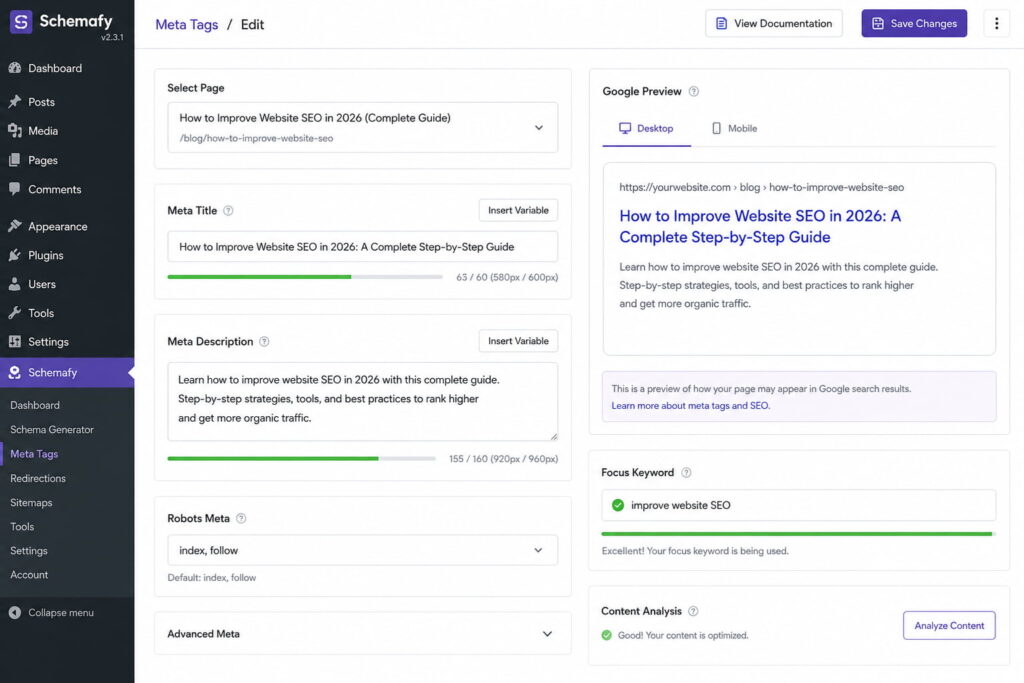
Schemafy shows the live Google Preview as you rewrite a product page’s title and description, so you catch truncation before it hits the SERP.
To rewrite tags in bulk, open Meta Tags > Bulk Import CSV, click Download Template for a file with the required url, meta_title, and meta_description columns, fill in your rows, and upload it. The import preview flags each row as Valid, Warning, or Invalid, then Import Rows applies only the valid ones. You can also test any title and description length against a live snippet with the SERP preview tool before you commit.
How to Fix Mobile Usability Problems
Google uses mobile-first indexing, which means it evaluates the mobile version of your site for ranking, as explained in Google’s page experience guidance. If your mobile experience is broken, your desktop polish will not save you.
Fix the fundamentals:
- Use a responsive theme that adapts cleanly to phone screens.
- Make tap targets and font sizes large enough to use without pinching or zooming.
- Remove intrusive interstitials and pop-ups that cover the content on load.
- Simplify navigation so the core paths work with a thumb.
Test on a real device and run Lighthouse in Chrome, since Google retired the standalone Mobile Usability report in Search Console. Because mobile Core Web Vitals feed the same page-experience signals, most speed fixes from earlier in this guide also improve mobile usability.
How to Fix Thin or Low-Value Content
Thin content underperforms, and Google may decline to index it at all. Pages that say very little give search engines very little reason to rank them.
Start by finding pages with high bounce and low time-on-page in your analytics. Then decide, page by page, whether to expand or consolidate:
- Expand pages worth keeping with real data, answers to the follow-up questions readers ask, images, and internal links.
- Consolidate or 301-redirect near-duplicate thin pages into one strong page.
- Add unique descriptions to category and collection pages instead of leaving them bare.
The test for every page is whether it matches search intent better than what already ranks. If it does not, expand it until it does, or fold it into a page that does.
How to Fix Missing or Broken Schema Markup
Most SEO guides mention schema in passing. That is a mistake, because broken structured data is one of the few issues that changes how your listing looks in search, not just where it ranks.
Missing, invalid, or incomplete structured data means no rich results: no star ratings, no price, no FAQ, no breadcrumbs. You lose click-through even when your ranking is fine. The impact is measurable. Rotten Tomatoes added structured data to 100,000 pages and saw a 25% higher click-through rate on marked-up pages, and Nestlé measured pages shown as rich results getting an 82% higher click-through rate than non-rich pages, both reported in Google’s structured data documentation.
That makes schema a fixable, high-return SEO issue rather than a technical footnote.
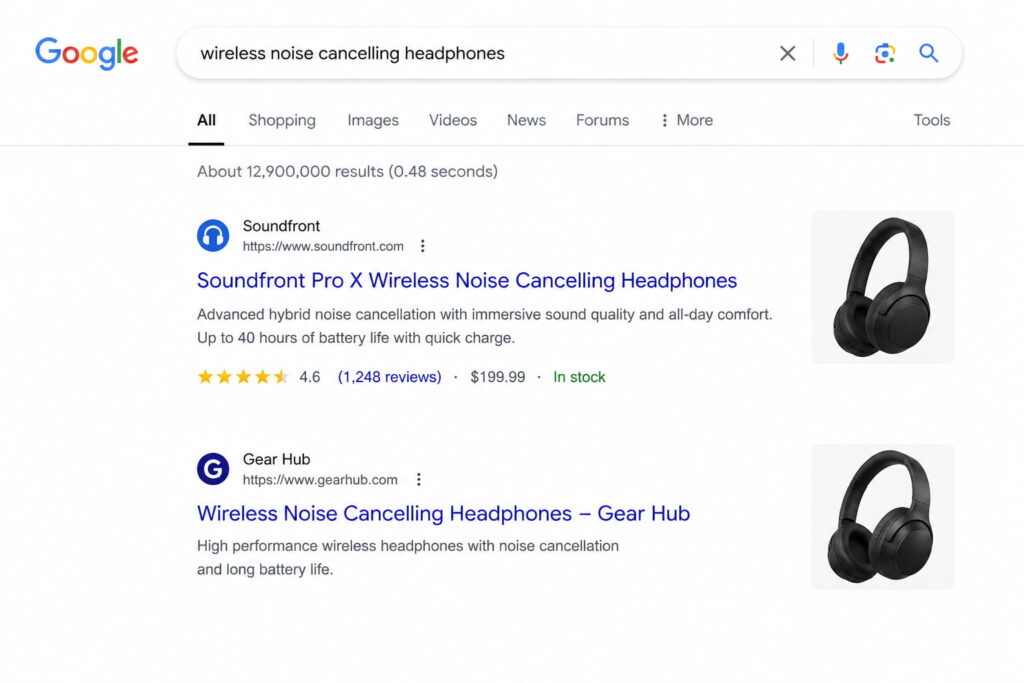
A single product with valid Product and Review schema earns stars and a price in the SERP, while the plain results below compete on text alone.
How to check your structured data
Check your key pages before you change anything. Run them through Google’s Rich Results Test and the Schema Markup Validator, then open the Enhancements and Rich results reports in Search Console to see errors and warnings across the whole site. Look for missing required properties, such as a product price or a review rating, and for invalid syntax.
Most schema problems fall into four buckets:
- No schema at all on pages that qualify for rich results.
- The wrong
@typefor the page, such asArticleon a product page. - Missing required fields, so the markup is present but ineligible.
- Markup that does not match the visible content on the page.
That last one matters: Google does not guarantee rich results even for valid markup, and it requires your structured data to match what users actually see, per Google’s structured data guidelines. If you want to inspect or hand-edit the raw code, a JSON-LD editor validates it against the same specification. Inside Schemafy, the Rich Snippets screen lists every schema already applied across your site, so you can see coverage and gaps in one place.
How to fix it fast on WordPress
You have two paths. The first is editing JSON-LD by hand in your theme files, such as functions.php or template files. It works, but it is error-prone, usually needs a developer, and breaks when the theme updates. The second is a dedicated plugin that injects validated JSON-LD without touching your theme.
Schemafy takes the second path. To cover a whole site, open WP Admin > Schemafy > Auto Schema Generator, click Scan Site, and filter by Post Type and Status, for example Product and Needs Schema. The scan lists every page with its current and suggested schemas so you can see coverage at a glance. For a specific page or a complex type, open AI Schema Generator, select the page, choose a type such as Product or FAQPage, click Generate Schema with AI, review the generated JSON-LD and its validation status, and click Save to Website. You can also start from a template with the schema markup generator or follow the full walkthrough on how to use schema markup. Either way, you add Product, Review, BreadcrumbList, and FAQPage schema that stays valid, without writing code.
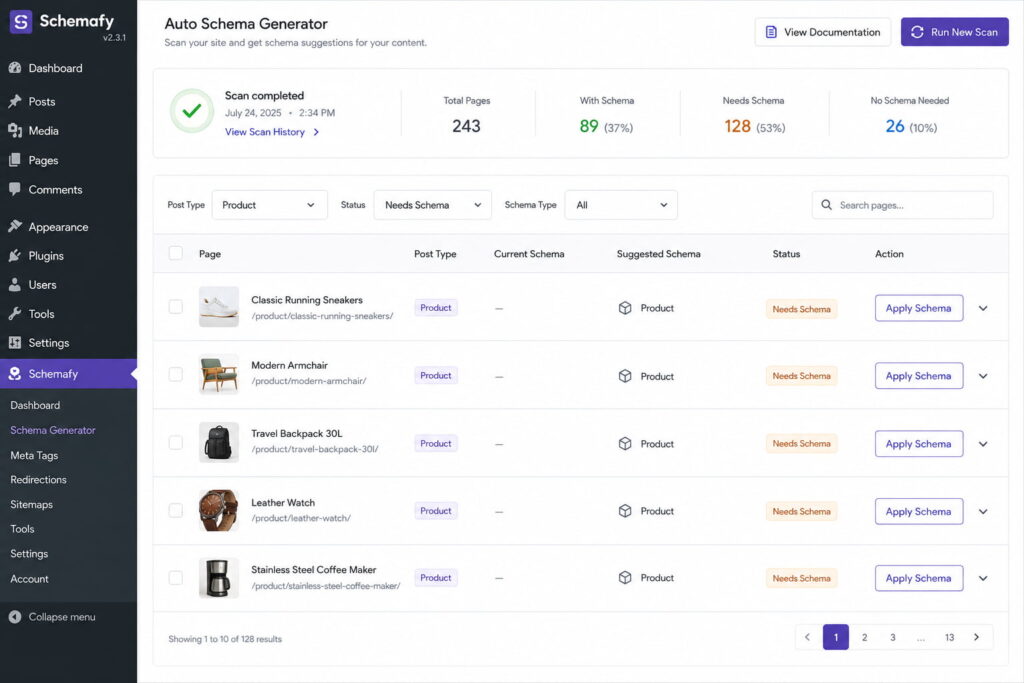
Schemafy’s Auto Schema Generator flags every product page missing schema after a single scan, so you fix coverage in bulk instead of page by page.
Does your site already have Schema Markup?
Generate structured data by template, with AI or in bulk, and verify it with Google's Rich Results Test — all from WordPress, no code.
- ✓ 16 schema types
- ✓ Free plan, forever
- ✓ Keeps Yoast / Rank Math
How to Prevent SEO Issues From Coming Back
SEO is not one-and-done. Most sites fix their issues once, stop monitoring, and watch broken links, speed regressions, and missing schema creep back within months. Maintenance beats emergencies.
Build a short routine you can repeat:
- Schedule a monthly crawl with your usual tool.
- Watch Search Console for new coverage and Core Web Vitals errors.
- Re-validate your schema after every theme or plugin update, since updates are what silently break markup. In Schemafy, the Rich Snippets screen shows what is still applied so you can spot anything that dropped.
- Keep a simple audit checklist so nothing gets skipped.
If you manage client sites, turn that checklist into a repeatable monthly pass and you will grow organic traffic more steadily than any one-time cleanup ever could.
Fix Your Schema Issues in Minutes with Schemafy
Of every issue in this guide, schema is one of the fastest to fix and one of the very few that directly changes how your listing looks in search. Rich results are a click-through win you can capture this week.
Schemafy is the no-code way for WordPress sites and WooCommerce stores to add valid JSON-LD, including Product, Review, BreadcrumbList, and FAQPage, without editing theme code. It complements the SEO work you are already doing. The fastest first step is to scan your site and see exactly what schema is missing.
Does your site already have Schema Markup?
Generate structured data by template, with AI or in bulk, and verify it with Google's Rich Results Test — all from WordPress, no code.
- ✓ 16 schema types
- ✓ Free plan, forever
- ✓ Keeps Yoast / Rank Math
Frequently Asked Questions
Quick answers to the questions store owners and agencies ask most about fixing SEO issues.
How do I check what SEO issues my site has?
Start with three free tools: Google Search Console for indexing and Core Web Vitals errors, a crawler like Screaming Frog or Ahrefs to find broken links and duplicate content, and Google PageSpeed Insights for speed. Together they surface almost every fixable SEO issue on your site.
How long does it take to fix SEO issues?
Individual fixes, like redirects, meta tags, or schema, take minutes to hours. Seeing ranking or traffic changes takes longer: Google must recrawl and reprocess your pages, which can be days for small fixes and several weeks for content or indexing changes across a larger site.
What are the most common SEO issues?
The most common SEO issues are slow page speed, broken links, duplicate content, pages not getting indexed, weak title tags and meta descriptions, poor mobile usability, thin content, and missing or invalid schema markup. Most sites have several at once, and nearly all are fixable without a developer.
Can I fix SEO issues myself without a developer?
Yes. Most SEO issues, like meta tags, redirects, image compression, indexing, and content, can be fixed in your CMS or WordPress settings without code. Schema markup is the main exception, but no-code plugins let you add valid structured data without editing theme files.
Does schema markup help fix SEO issues?
Schema markup doesn’t boost rankings directly, but it fixes a real visibility issue: without valid structured data your pages can’t show rich results like star ratings, prices, or FAQs. Adding correct JSON-LD schema improves how your listing looks and lifts click-through rate.
Eddie Casas built the first version of Schemafy himself, rough and vibe-coded, to fix a problem he kept hitting in his own SEO work: structured data that took too long to do right. Once the idea proved out, he brought in engineer Fabián Tinjacá to rebuild it into the plugin it is today. He now leads growth, SEO and content at Schemafy, and runs QA on every release before it ships. He is also the founder of TheBaseo, an SEO and AEO agency, so the playbooks on this blog are the ones he runs on real sites, not theory. His take: most schema advice online is written by people who have never had to apply it across hundreds of live pages. Eddie writes for the operator who has.