
Schema Markup Generator: How to Create and Apply JSON-LD in WordPress
 By Eddie Casas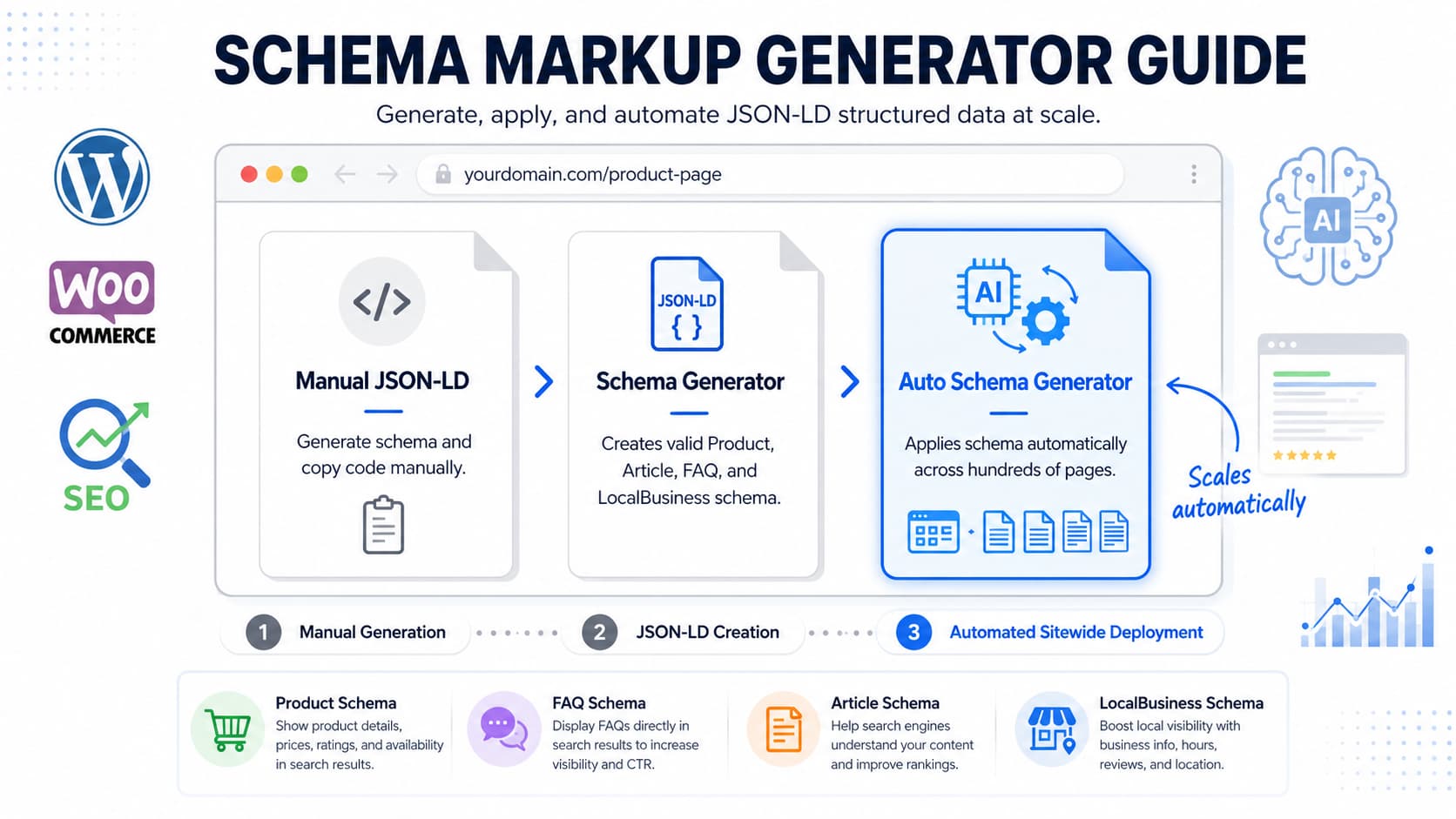
A schema markup generator is like a label printer. Schema markup is the set of labels that tell search engines what is inside your page. Printing one label is easy: pick a type, fill a form, copy the code. Most guides stop there and let you believe the job is done. The real work starts after you copy that snippet, when you have to stick the label on every box by hand.
What is a schema markup generator?
A schema markup generator is a tool that turns page details you enter, such as product, article, FAQ, or business information, into valid JSON-LD structured data. Search engines and AI systems read that code to understand your page, and it can make the page eligible for a rich result like a star rating or an FAQ dropdown.
The problem it solves is real. Writing JSON-LD by hand is slow and easy to get wrong, and a single misplaced comma or wrong property name can break your eligibility for rich results. A generator removes that risk. You describe the page, it writes the syntax.
Here is what a generator does not solve on its own. It produces the code, but it does not put the code on your site. You are left with a valid block of JSON-LD in your clipboard and no automated way to apply it. On a five-page site that is fine. On a store with hundreds of products, that gap is the whole problem.
How a schema generator creates JSON-LD
The mechanism is simple, and you never touch code to run it. You pick a type (Article, Product, FAQPage), fill in the fields the type asks for, and the generator assembles a <script type="application/ld+json"> block from your answers. Our complete guide to using schema markup walks through what each type expects.
Here is what a generator hands back for a simple Organization type:
{
  "@context": "https://schema.org",
  "@type": "Organization",
  "name": "Acme Coffee Roasters",
  "url": "https://acmecoffee.com",
  "logo": "https://acmecoffee.com/logo.png",
  "sameAs": [
    "https://www.instagram.com/acmecoffee",
    "https://www.linkedin.com/company/acmecoffee"
  ]
}
That block lives inside a script tag, separate from the HTML your visitors see. You can add it or remove it without touching your layout, which makes it safe to test. Google recommends JSON-LD for exactly this reason: it is the easiest format to implement and maintain, and it keeps structured data cleanly separated from your page markup (per Google Search Central).
JSON-LD vs. Microdata vs. RDFa: which format to generate
There are three ways to write structured data. They are not equal in practice.
| Format | Where the code lives | Google-recommended |
|---|---|---|
| JSON-LD | In a <script> tag, separate from HTML | Yes |
| Microdata | Inline, mixed into your HTML tags | Supported, not preferred |
| RDFa | Inline, mixed into your HTML tags | Supported, not preferred |
Generate JSON-LD. That is the whole recommendation. Microdata and RDFa wrap themselves around your visible HTML, so editing a page risks breaking the markup, and every template change is a chance to introduce an error. JSON-LD sits in one clean block you can swap in and out. Google says the same thing.
Which schema types a good generator should support
A good generator does not try to cover all 800-plus types in the schema.org vocabulary. It covers the types Google actually uses for rich results, because those are the ones that change how your page looks in search. Google validates rich results for a limited set of types, not the entire vocabulary (Google Search Console Help).
Schemafy’s generators (the Smart Schema Builder, the Auto Schema Generator, and the AI Schema Generator) cover the 16 canonical Schema.org types that matter for WordPress content: Article, Product, Organization, LocalBusiness, Person, Event, Recipe, Review, FAQPage, WebPage, Course, HowTo, JobPosting, Service, VideoObject, and BreadcrumbList.
The hard part is knowing which type your page needs. This table maps the common cases:
| If your page is… | Use this schema type |
|---|---|
| A blog post or news article | Article |
| A store product | Product |
| A company or brand page | Organization |
| A store or restaurant with a location | LocalBusiness |
| A Q&A or help section | FAQPage |
| A step-by-step tutorial | HowTo |
| A product or service rating | Review |
| A webinar or conference | Event |
The schema types that actually earn rich results
Not every type changes your search listing. A handful do most of the work: Product, FAQPage, Review and AggregateRating, LocalBusiness, Article, HowTo, and Event. These are the ones that trigger visible rich results, the star ratings and FAQ dropdowns that pull the eye.
Schema is not a direct ranking factor, but the sites that rank well tend to use structured data consistently, and the visible rich results move click-through rate. Google’s own case studies show the size of the effect: Rotten Tomatoes measured a 25% higher click-through rate across 100,000 pages with structured data, and Food Network saw a 35% increase in visits after adding search features to about 80% of its pages (Google Search Central).
You can generate any of these types with a free schema markup generator and preview how the result looks before you commit.
How to use a schema markup generator, step by step
The workflow is the same across almost every tool. Seven steps take you from a blank form to a monitored rich result.
- Pick the schema type that matches your page.
- Fill in the fields the generator asks for.
- Generate the JSON-LD.
- Copy the code.
- Add it to your page’s HTML.
- Test it in Google’s Rich Results Test.
- Monitor rich results in Search Console.
Steps 1 through 4 are where a generator earns its keep. Inside WordPress, Schemafy runs that flow with no JSON-LD to write and no code to paste into a template. You pick a type, fill a form, and the plugin holds the output for you instead of dropping it into your clipboard.
Generating schema with a visual builder
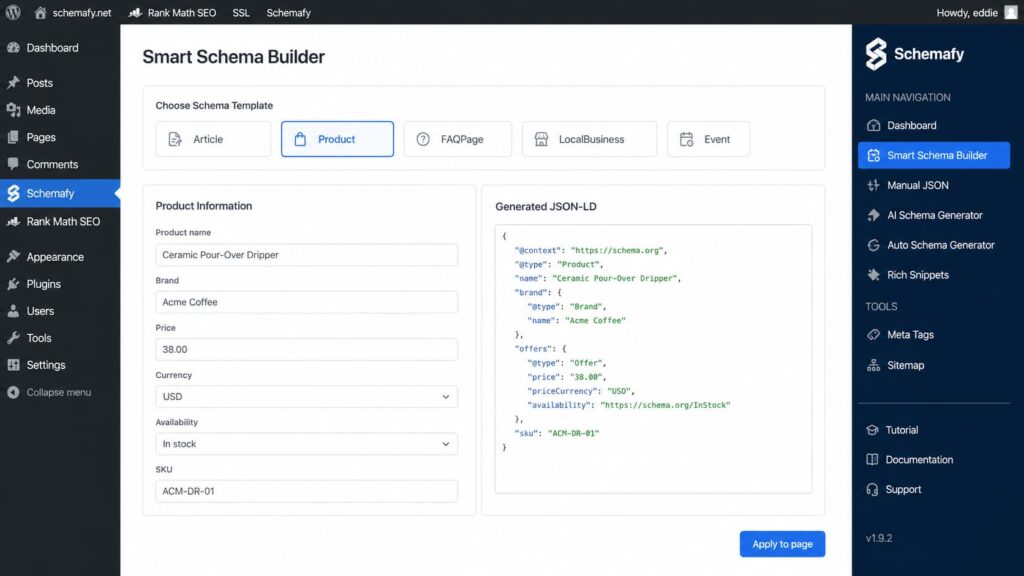
For the standard types, the Smart Schema Builder is the fastest path. You choose a template (Article, Product, FAQPage), fill in the fields in a plain form, and get valid JSON-LD back. There is no JSON-LD to write and nothing to hand-code.
[WORKFLOW: open the Smart Schema Builder, choose a template (Article / Product / FAQPage), fill in the form fields, and generate valid JSON-LD, then apply it to the selected page. Verify exact menu paths and field labels against the current UI before publishing.]
Generating complex schema with AI
Some types are nested or awkward, and you may not know which fields they require. For those, the AI Schema Generator reads your page content and builds the right type for you. You connect your own ChatGPT or Claude API key, and the plugin uses it to draft the schema from what is already on the page.
Open WP Admin → Schemafy → AI Schema Generator, select the page or paste its URL, choose a schema type, and click Generate Schema with AI. Review the generated fields and the validation status, then click Save to Website. The output is still valid JSON-LD; the AI just assembles it so you do not have to guess the required properties. For custom edge cases you can also refine the code in the JSON-LD editor with real-time validation.
The part most schema generators skip: applying the markup
Here is the honest split that no standalone generator will tell you. Generating the snippet is about 20% of the work. Applying it and keeping it in sync is the other 80%, and that is the part a web-based generator leaves entirely to you.
Think about what you actually hold after you click “generate.” A valid block of code in your clipboard. Now paste it into 300 pages. There is no button for that on a standalone tool. The generator’s job ends at the copy, and yours begins.
That gap is where most schema efforts quietly die. The two sections below show why the manual route breaks down and what applying schema automatically looks like instead.
Why pasting JSON-LD into every page doesn’t scale
Copy-paste works until it doesn’t, and the wall arrives fast. Pasting schema by hand into 800 WooCommerce products or 1,200 programmatic URLs is not a task you finish. It is a task you abandon halfway through.
The bigger problem is drift. The moment you change a price, rename a product, or update a title, the snippet you pasted last month is wrong. Nobody goes back to fix 800 hand-pasted blocks. So the schema rots: still present, quietly inaccurate, and Google’s guidelines say markup that does not match your visible content can cost you eligibility. Without a tool that applies and updates the markup for you, hand-pasting is a maintenance debt you take on the day you start.
Generating and applying schema automatically in WordPress
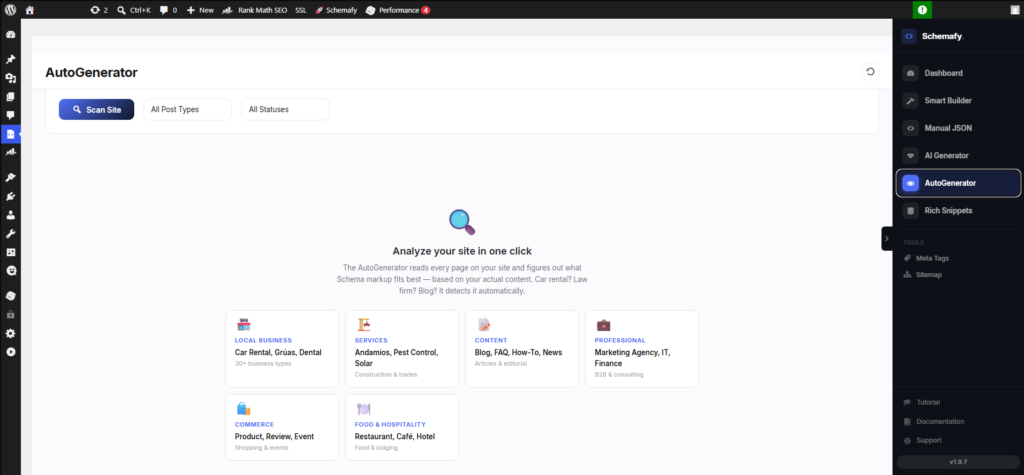
This is the step a standalone generator cannot do. Schemafy’s Auto Schema Generator scans your site, detects schema opportunities by post type and status, and applies the markup without you pasting code into a single page.
The flow is direct. Open WP Admin → Schemafy → Auto Schema Generator, click Scan Site, then filter Post Type to Product and Status to Needs Schema. The plugin lists every page that is missing schema with a suggested type and a match percentage, and you apply the markup across them from that screen instead of one product at a time. Because the WordPress schema plugin works with WooCommerce out of the box, your product pages are covered automatically as you add them.
Generate and apply schema across every WordPress page without pasting code. Install Schemafy free →
How to test and validate your schema markup
Generating and applying schema is not the last step. You confirm it works. Paste the code or the live URL into Google’s Rich Results Test to see which rich result features the page qualifies for, and into the Schema Markup Validator for a general check against the schema.org vocabulary.
Read the results carefully. A valid item in the Rich Results Test does not guarantee Google will show the rich result, but an invalid item guarantees it won’t (Google Search Central). Fix any warnings, then track rich result impressions in Search Console over the following weeks to confirm the markup is doing its job. Schemafy validates against Google’s Rich Results specification in real time as you build, so most errors get caught before they ever reach the test, and you can refine anything unusual in the JSON-LD editor with real-time validation.
Free schema generator tools compared
Most schema generators do the first job well: they produce clean JSON-LD from a form. They differ on the second job, whether they also apply that markup to your site or leave you at the clipboard.
| Tool | Schema types | Output format | Generates vs. also applies | Platform |
|---|---|---|---|---|
| TechnicalSEO.com | Common Google types | JSON-LD | Generates only | Web (any site) |
| Google Structured Data Markup Helper | Limited set | JSON-LD or Microdata | Generates only | Web (any site) |
| RankRanger / Merkle generator | Common Google types | JSON-LD | Generates only | Web (any site) |
| JSON-LD.com | 17 types | JSON-LD | Generates only | Web (any site) |
| Schemafy | 16 canonical types | JSON-LD | Generates and applies | WordPress plugin |
The standalone tools are genuinely good at generating valid markup, and for a handful of pages any of them will do. The difference is the “applies” column. Every web-based generator hands you code and stops; Schemafy generates the JSON-LD and then applies it across your WordPress pages, which is the part that matters once you are past a dozen URLs.
Does schema markup help SEO and AI search?
This is the question everyone asks, so here is the direct answer. Schema markup is not a direct ranking factor, and it hasn’t been one since Google said so in 2018 (Google Search Central). Adding schema will not, by itself, move you up the results page. If that is the promise a tool is selling, it is selling the wrong thing, the same way meta descriptions are not a direct ranking factor yet still shape your click-through rate.
What schema does is help search engines and AI systems understand your content, and it makes you eligible for rich results that lift clicks. Google’s Nestlé case study found 82% higher click-through rate on pages that earned a rich result versus pages that did not (Google Search Central). The same structured data that feeds rich results also feeds AI answers: clean schema helps AI Overviews, ChatGPT, and Perplexity read and cite your page, which is the core of generative engine optimization. Structured data is one of the most reliable ways to grow organic traffic without chasing rankings directly.
Final thoughts
Generating schema stopped being the hard part years ago. Any decent generator writes valid JSON-LD from a form in seconds. The real problem is applying that markup across every page and keeping it accurate when your content changes, and that is an operational job, not a code one.
The fastest first step is to audit which pages are missing schema, then automate the application instead of pasting code by hand. That is the difference between schema you set up once and schema that quietly stays correct.
Audit what is missing, then automate the markup. Get Schemafy free on WordPress.org →
Frequently asked questions
Is a schema markup generator free?
Yes. Most schema markup generators, including Schemafy’s, are free to use and require no signup. You enter your page details, pick a schema type, and get valid JSON-LD to copy. Paid tools add automation, like applying and updating that schema across hundreds of pages without manual work.
How do I generate schema markup for my website?
Pick the schema type that matches your page (Product, Article, FAQ, LocalBusiness), fill in the fields in a generator, and copy the JSON-LD it outputs. Paste that code into your page’s HTML, then test it in Google’s Rich Results Test to confirm it is valid before publishing.
What is JSON-LD schema?
JSON-LD is the JSON-based format Google recommends for structured data. It lives in a script tag, separate from your visible HTML, so you can add or remove it without touching your design. A generator writes valid JSON-LD for you, avoiding the syntax errors that break rich result eligibility.
Which schema type should I use?
Match the type to the page: Product for store items, Article for blog posts, FAQPage for Q&A sections, LocalBusiness for a physical location, Review for ratings. Using the wrong type, or missing required fields, blocks rich results. A good generator only shows the fields each type needs.
How do I add schema markup to WordPress?
You can paste JSON-LD manually into each page, but that does not scale past a handful of pages. A WordPress schema plugin generates and applies the markup for you, detecting schema opportunities across your posts and products and keeping the code in sync when content changes.
Is schema markup a Google ranking factor?
No, schema markup is not
Does your site already have Schema Markup?
Generate structured data by template, with AI or in bulk, and verify it with Google's Rich Results Test — all from WordPress, no code.
- ✓ 16 schema types
- ✓ Free plan, forever
- ✓ Keeps Yoast / Rank Math
Eddie Casas built the first version of Schemafy himself, rough and vibe-coded, to fix a problem he kept hitting in his own SEO work: structured data that took too long to do right. Once the idea proved out, he brought in engineer Fabián Tinjacá to rebuild it into the plugin it is today. He now leads growth, SEO and content at Schemafy, and runs QA on every release before it ships. He is also the founder of TheBaseo, an SEO and AEO agency, so the playbooks on this blog are the ones he runs on real sites, not theory. His take: most schema advice online is written by people who have never had to apply it across hundreds of live pages. Eddie writes for the operator who has.