
Google Merchant Center Account: The WooCommerce Setup Guide That Prevents Disapprovals
Most guides treat a Google Merchant Center account as a form you fill once. Create it, upload a feed, done in 20 minutes.
The account is the easy part. Keeping products approved is the real work, because Google crawls your product pages and checks that your feed, your landing page, and your structured data all say the same thing. That check is where most new WooCommerce stores fail. This guide covers both halves.
What is a Google Merchant Center account?
A Google Merchant Center account is a free account where you upload and manage the product data Google shows across Search, Shopping, Maps, and YouTube. It is the data source behind both free product listings and paid Shopping ads, not an advertising channel by itself.
Think of it as the layer between your store and every Google surface that displays products. Your WooCommerce catalog feeds Merchant Center, and Merchant Center feeds Google. It is also where Google checks that your prices, availability, and images match what shoppers actually see on your site. Google’s own Get started with Merchant Center doc covers the basics; this guide covers the WooCommerce specifics it skips.
Is Google Merchant Center free?
Yes. Creating the account, uploading products, and appearing in free listings costs $0, per Google’s documentation.
You only pay if you run Shopping ads, and that billing happens in a linked Google Ads account, not in Merchant Center. The two get confused constantly: Merchant Center holds your product data, Google Ads spends your budget. You can use the first without ever touching the second.
Free listings vs Shopping ads: what the account actually gets you
One account powers two very different distribution channels. Here is how they compare:
| Free listings | Shopping ads | |
|---|---|---|
| Where they appear | Shopping tab, Search, Maps, YouTube | Shopping tab, Search results, partner sites |
| Cost | $0 | Pay-per-click budget |
| Feed requirements | Same product data spec | Same product data spec |
| Google Ads account | Not required | Required (linked) |
For a WooCommerce store with 100 to 1,000 products, free listings alone justify the account. Your products become eligible to appear in the Shopping tab with zero ad spend, and you can add paid campaigns later for the products that earn impressions. If you manage stores for clients, this is also the cleanest pitch for setting up Merchant Center on day one, before there is any ad budget to argue about.
What you need before creating your account
Have these five things ready before you start. Missing any of them causes rejections later:
- A Google account (one Merchant Center account per Google account)
- An active website with product pages shoppers can buy from online
- A visible returns policy and contact information
- A working checkout with SSL
- Product data on the site that matches what you plan to submit
One warning from Google’s setup documentation deserves bold type: the country you select during account setup cannot be changed later. If you sell across markets, or you are setting up accounts for clients in different countries, choose deliberately. Fixing a wrong country means creating a new account from scratch.
How to create a Google Merchant Center account, step by step
The four steps below take roughly 20 minutes in the current interface (Merchant Center Next). If you run an agency, budget that 20 minutes per client store: the process repeats identically for every domain.
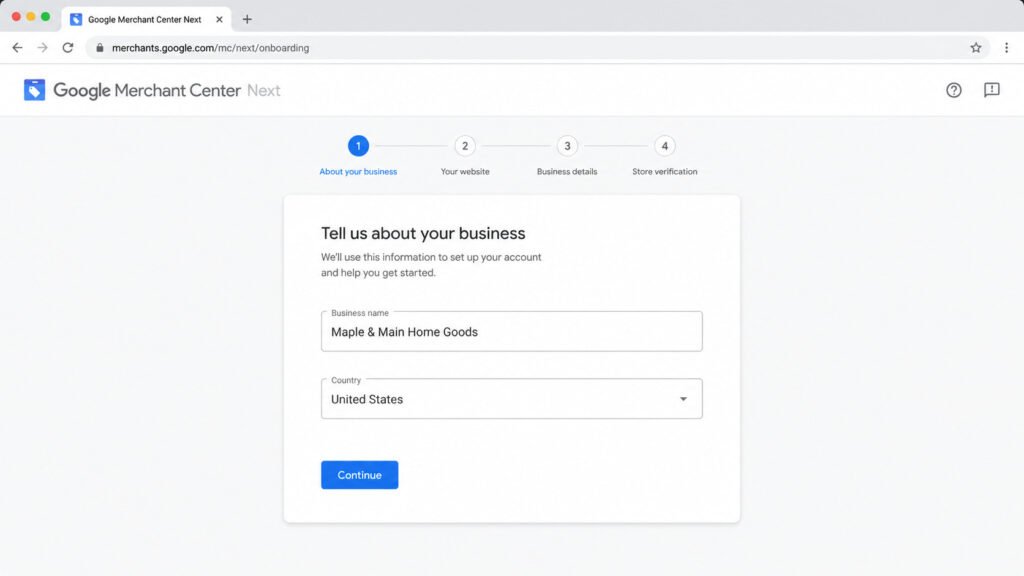
Caption: Merchant Center Next onboarding asks for business details first. The name you enter here appears on your listings.
Step 1: Sign in and add your business details
Go to merchants.google.com and sign in with the Google account that should own the store’s data. One Google account can create one Merchant Center account, per Google’s documentation, so agencies should use the client’s account rather than their own. You will enter a business name, country, and time zone.
The business name is not cosmetic. It appears on your listings, and Google cross-references it against your website. Use your brand name exactly as it appears on your site. A store called “Maple & Main” on the site and “MM Retail LLC” in Merchant Center reads as an inconsistency, and inconsistencies feed the misrepresentation checks covered later in this guide.
Step 2: Verify and claim your website
Verification proves you control the domain. Google’s Configure your accounts doc lists four methods: an HTML tag added to your homepage, Google Tag or Google Analytics if already installed, Google Search Console, or an HTML file upload.
For WordPress stores, Search Console is the shortcut. If your site is already verified there, Merchant Center picks up the verification with one click and nothing new touches your theme. Otherwise, the HTML tag goes in your site’s head section.
Two details trip people up. First, verifying and claiming are separate actions: verification proves control, claiming binds the domain to this specific Merchant Center account. Complete both. Second, only one account can claim a domain at a time, which matters the moment an agency and a client both create accounts.
Step 3: Configure shipping, returns, and tax
These are the settings that silently block listings when they are missing or wrong. Configure shipping with the rates you actually charge, not optimistic estimates. Add your return policy and link it to the policy page on your site. United States sellers also configure tax settings here.
Google compares the shipping cost a shopper sees at your checkout with the cost you declared in Merchant Center, as part of its landing page requirements. A $4.99 declared rate against a $7.99 checkout rate is a mismatch, and mismatches become disapprovals. When in doubt, declare the higher rate.
Step 4: Add your WooCommerce products
This is where the generic guides go Shopify-first and leave WooCommerce owners guessing. You have three ways to get products into Merchant Center:
- The official Google for WooCommerce extension. It syncs your catalog through the Content API, and product edits trigger an automatic re-sync, so price changes flow to Google without manual feed uploads.
- A file or Google Sheets feed built to the product data specification, maintained by hand or by a feed plugin.
- Manual entry in the Merchant Center interface, viable only for catalogs under a couple dozen products.
For a store with 100 to 1,000 products, use the extension. Then audit the attributes Google requires before you sync: id, title, description, link, image_link, price, availability, brand, and GTIN or MPN. The extension maps most of these from WooCommerce fields automatically, but only if those fields are filled. Empty brand and GTIN fields are the single most common gap, and they matter enough to get their own section below.
How Google verifies your product data (and where stores fail)
Submitting a feed is not the finish line. After you sync, Google crawls your product landing pages and compares what it finds against what you submitted. Price, availability, images, all of it. If you want the background on how that crawling works, we cover it in how Google crawls your pages. Large catalogs should also make sure those recrawls aren’t wasting crawl budget on duplicate or filtered URLs.
This creates a triangle that has to stay consistent: the feed, the visible page, and the page’s structured data. Most disapprovals for new stores trace back to one corner of that triangle drifting from the other two.
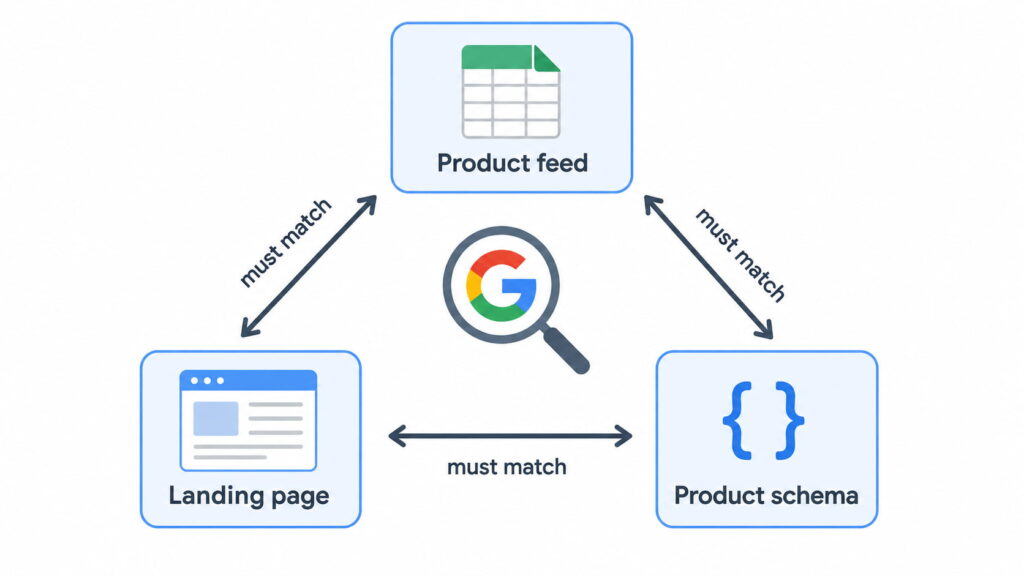
Caption: Google checks all three corners. A price change that reaches one corner but not the other two becomes a disapproval.
Feed, landing page, and Product schema must tell the same story
Google does not only read your page visually. Its structured data documentation for Merchant Center states that markup must be present in the HTML returned by the server, cannot be generated by JavaScript after the page loads, and must match the values shown to the user. Google recommends JSON-LD and uses schema.org markup to read price, availability, and product identifiers directly from your pages.
The technical requirements are specific. Your product page should carry one Offer, or, if it lists several, each offer needs a SKU or GTIN that matches the feed. The Offer itself must include price, priceCurrency, and availability. If you are new to this layer, start with what structured data is. You can also build a valid Product block by hand with a free schema markup generator.
This is where a schema plugin earns its place in an e-commerce stack. A plugin like Schemafy generates the Product schema with its offers by reading price, stock, and ratings directly from your WooCommerce fields, so the markup updates when the product updates and never tells Google a different story than your feed. You can monitor how Google reads that markup in Search Console’s Merchant Listings report.
GTIN, MPN, and Brand: the identifiers that gate your listings
Three identifiers decide how well Google matches your products. GTIN (the global barcode number), MPN (the manufacturer’s part number), and Brand. The rule from Google’s supported attributes documentation: submit the GTIN if the product has one; if it does not, submit MPN plus Brand as the fallback.
Skip them and you pay three times. Matching gets worse, so your products land next to the wrong competitors. You lose eligibility for enriched listings. And in strict categories, missing identifiers become outright disapprovals.
The WooCommerce-specific failure is quieter: WooCommerce has shipped a native “GTIN, UPC, EAN, or ISBN” field on the product Inventory tab since version 9.2, supported by the Google for WooCommerce extension, for both simple products and variations. Most stores never fill it. Those same fields are what your Product schema should expose, and Schemafy maps them into the markup without manual editing. For the broader context on markup strategy, see our schema markup guide.
Common Merchant Center account problems and how to fix them
Three problems cover most of what goes wrong with a new account: item disapprovals, misrepresentation suspensions, and lost website claims. Each has a distinct symptom, cause, and fix. The debugging mindset is the same one you would use to fix common SEO issues: find the mismatch, correct the source, request re-review.
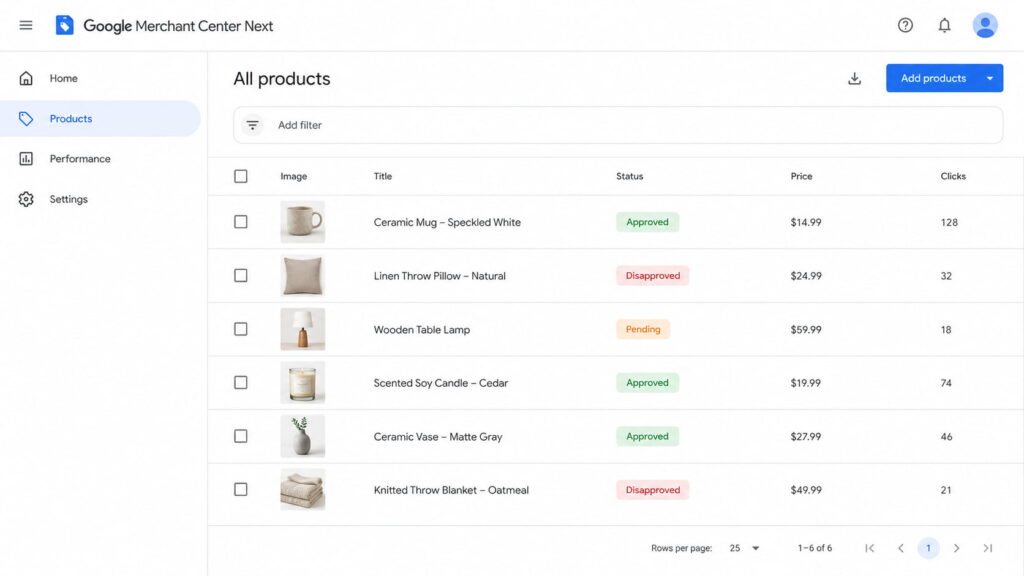
Caption: Products > All products is the first place to look. Disapproved items list the specific policy reason when clicked.
Item disapprovals: price and availability mismatch
Symptom: products flip to “Disapproved” in Products > All products, usually citing a price or availability mismatch. Per Google’s product status documentation, reviews take 3 to 5 business days for Shopping ads and can take weeks for free listings, so each disapproval-fix cycle is expensive.
Cause: in WooCommerce stores, the usual suspect is a page that no longer matches the feed. A cache or CDN serving yesterday’s price. A sale that started in WooCommerce but has not reached the crawled page. Variations whose prices differ from what the schema reports.
Fix: let the extension handle feed sync (it re-syncs on product edits automatically), purge your cache every time prices change, and run the affected URL through Google’s Rich Results Test to confirm the schema on the live page shows the same price and availability as the feed.
Misrepresentation suspensions
This is the account-level suspension that scares store owners most, partly because Google explains it least.
Cause: Google cannot verify the business is what it claims. Common triggers are missing contact information, missing or thin policy pages, a new domain with no external signals, and inconsistencies between feed, site, and checkout. Google’s guidance on keeping products approved points repeatedly at data consistency and transparency.
Fix: complete your business identity in Merchant Center, make contact details and policies visible on the site, and align your branding across feed, storefront, and checkout. Then request review and wait it out. Be realistic: reviews are slow, repeated failed reviews make things worse, and nobody can honestly promise fast reinstatement. Agencies onboarding brand-new client domains should set that expectation before the first sync, because new domains with no history trip these checks most often.
Website claim lost or verification failed
Symptom: Merchant Center reports the website is no longer verified or claimed, and listings stop.
Cause: the HTML verification tag was deleted during a redesign or theme change, a redirect chain broke the homepage check, or another Merchant Center account claimed the domain.
Fix: re-verify through Search Console, which survives theme changes because it is tied to the property rather than a tag in your template. If another account holds the claim, resolve ownership before fighting Google about it. For agencies this is a contract question as much as a technical one: decide up front whether the agency’s account or the client’s account owns the claim, and document it.
What changed in Merchant Center in 2026
The product data spec gets an annual update, and the 2026 round, published by Google, has three changes worth acting on.
Image quality became enforceable policy. The minimum resolution for image_link and additional_image_link rose to 500×500 pixels across all categories, with warnings running since April 14, 2026 and enforcement starting January 31, 2027. Audit your thumbnails now, before warnings become disapprovals.
Video became a real feed asset. Since June 30,2026, videos submitted through video_link are eligible to serve, and Google validates them for policy and quality. A failed video blocks the video, not the offer.
Shipping got product-level controls, including a handling cutoff time and a minimum order value attribute.
The direction is consistent: Google keeps tightening how product data is validated while Shopping surfaces expand into AI experiences. Consistent, machine-readable product data stops being a nice-to-have and becomes the entry ticket.
Final thoughts
Creating a Google Merchant Center account takes 20 minutes. What keeps your products live afterward is consistency: the feed, the landing page, and the Product schema telling Google the same price, the same stock, the same brand, every day.
If you are starting today, the order matters. Create the account, verify through Search Console, connect the Google for WooCommerce extension, and fill in GTIN and Brand on your products before you sync anything. Stores that do the identifier work first skip most of the disapproval cycle entirely. If you manage multiple client stores, turn that order into your standard onboarding checklist, because every shortcut taken during setup resurfaces later as a policy flag.
Does your site already have Schema Markup?
Generate structured data by template, with AI or in bulk, and verify it with Google's Rich Results Test — all from WordPress, no code.
- ✓ 16 schema types
- ✓ Free plan, forever
- ✓ Keeps Yoast / Rank Math
Frequently asked questions
What is a Google Merchant Center account?
A Google Merchant Center account is a free account where you upload and manage the product data Google shows across Search, Shopping, Maps, and YouTube. It feeds both free product listings and paid Shopping ads, and it is where Google checks that your prices, availability, and images match your website.
Is a Google Merchant Center account free?
Yes. Creating the account, uploading products, and appearing in free listings cost nothing. You only pay when you run Shopping ads through a linked Google Ads account. For many WooCommerce stores, free listings alone justify setting up Merchant Center even with no ad budget.
Do I need a website to use Google Merchant Center?
Yes, in practice. Google requires an active website with product pages you verify and claim during setup, and it crawls those pages to confirm your feed data matches. Your site also needs visible contact information, a returns policy, and a secure checkout to stay in good standing.
Do I need Google Ads to use Merchant Center?
No. Free product listings work through Merchant Center alone. You only need a linked Google Ads account if you want to run paid Shopping campaigns. Many stores start with free listings, measure which products get impressions, and add paid campaigns later for the winners.
How long does Merchant Center verification take?
Website verification is usually instant if you use Google Search Console or a tag already on your site. Product review takes 3 to 5 business days for Shopping ads and can take a few weeks for free listings, and account-level reviews such as a misrepresentation check can take longer still.
Can I change my Merchant Center account country later?
No. The country you select during account setup cannot be changed afterward, so choose carefully if you sell across markets. You can add additional target countries for your feeds, but the account’s base country is permanent; changing it means creating a new account.

Fabián Tinjacá is the CTO of Schemafy and the engineer who turned an early prototype into a production plugin. He owns the technical side end to end: the plugin core, the schema generation engine, releases, and bug fixes. He also built the Schemafy website in Astro. His take: most WordPress SEO plugins are slow because they try to be five tools at once. Fabián builds Schemafy to do structured data and meta well without dragging down the sites it runs on.